As mentioned in my earlier post Windows 8 – What’s new in the Deployment Image Servicing and Management tool (DISM) the DISM tool now also contains commands for managing metro style applications. When running dism.exe /online /? we find the following APPX servicing commands.
/Remove-ProvisionedAppxPackage - Removes AppX packages from the image. AppX packages will not be installed when new user accounts are created.
/Add-ProvisionedAppxPackage - Adds AppX packages to the image and sets them to install for each new user.
/Get-ProvisionedAppxPackages - Displays information about AppX packages in an image that are set to install for each new user.
Listing Provisioned Metro Style Applications
When running the command DISM.EXE /Online /Get-ProvisionedAppxPackages we get a list of all metro style applications that are installed for each new user..
Deployment Image Servicing and Management tool Version: 6.2.8102.0
Image Version: 6.2.8102.0
Getting the list of 3rd party AppX packages in this image…
DisplayName : microsoft.alarms Version : 1.0.0.40 Architecture : neutral ResourceId : neutral PackageName : microsoft.alarms_1.0.0.40_neutral_neutral_8wekyb3d8bbwe
DisplayName : microsoft.audiotagpiano Version : 1.2.1.8 Architecture : neutral ResourceId : neutral PackageName : microsoft.audiotagpiano_1.2.1.8_neutral_neutral_8wekyb3d8bbwe
DisplayName : microsoft.bitbox Version : 1.0.0.11 Architecture : neutral ResourceId : neutral PackageName : microsoft.bitbox_1.0.0.11_neutral_neutral_8wekyb3d8bbwe
DisplayName : microsoft.build Version : 1.0.1.4 Architecture : neutral ResourceId : neutral PackageName : microsoft.build_1.0.1.4_neutral_neutral_8wekyb3d8bbwe
DisplayName : microsoft.checkm8 Version : 1.0.60819.0 Architecture : neutral ResourceId : neutral PackageName : microsoft.checkm8_1.0.60819.0_neutral_neutral_8wekyb3d8bbwe
DisplayName : microsoft.copper Version : 1.0.0.27 Architecture : x86 ResourceId : neutral PackageName : microsoft.copper_1.0.0.27_x86_neutral_8wekyb3d8bbwe
To keep this blog post short, I have shortened the list
Removing Provisioned Metro Style Applications
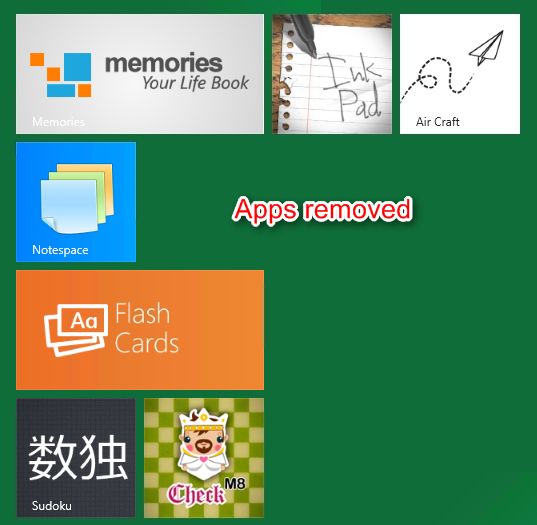
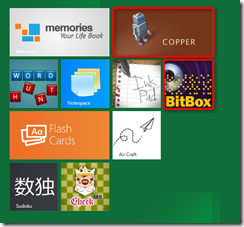
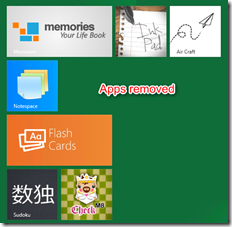
To prevent a metro style application being installed for new users the command DISM.EXE /Online /Remove-ProvisionedAppxPackage is used.
DISM.EXE /Online /Remove-ProvisionedAppxPackage /PackageName:microsoft.bitbox_1.0.0.11_neutral_neutral_8wekyb3d8bbwe DISM.EXE /Online /Remove-ProvisionedAppxPackage /PackageName:microsoft.copper_1.0.0.27_x86_neutral_8wekyb3d8bbwe
Adding Metro Style Applications
To add metro style application we use the command DISM.EXE /Online /Add-ProvisionedAppxPackage
DISM.EXE /Online /Add-ProvisionedAppxPackage /PackagePath:C:\data\MetroApp01_1.0.0.3_AnyCPU_Debug_Test\MetroApp01_1.0.0.3_AnyCPU_Debug.appx /SkipLicense
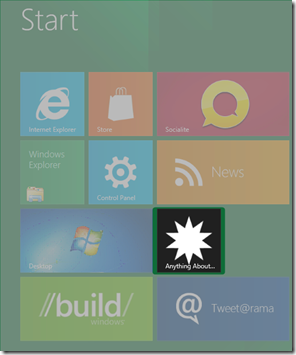
When running DISM.EXE /Online /Get-ProvisionedAppxPackages again, we see the entry for the new added metro style app.
DisplayName : anythingaboutit.meet.metro Version : 1.0.0.3 Architecture : neutral ResourceId : neutral PackageName : anythingaboutit.meet.metro_1.0.0.3_neutral_neutral_5gyrq6psz227t