Aaron Margosis recently released Policy Analyzer, a utility for analyzing and comparing sets of Group Policy Objects (GPOs). Here’s a brief description on how to use the tool to compare two Domain GPOs.
I created two GPOs in my test domain, both starting with the name “Foo” and then configured some settings. The Policy Analyzer can import GPO settings based on a GPO backup so as a next step we create a GPO backup. The quickest way is to do this via PowerShell.
Get-GPO -All | Where-Object {$_.DisplayName -like “Foo Corp”} | Backup-GPO -Path C:\data*
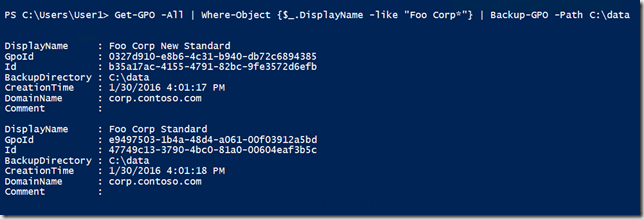
Now that we have a backup we copy them into the Policy Analyzer working folder, in my case that’s:
C:\Users\Admin\Documents\PolicyAnalyzer*GPOs*
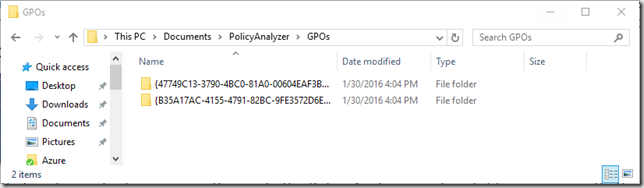
Next Open the Policy Analyzer Tool and select Add.
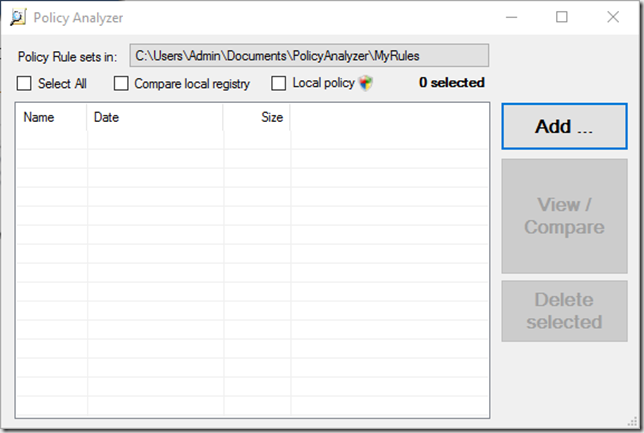
A new window opens, select File, add files from GPOs
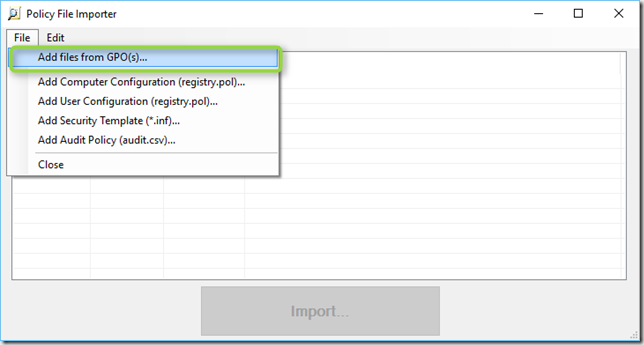
Select the first folder
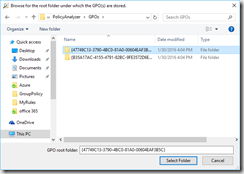
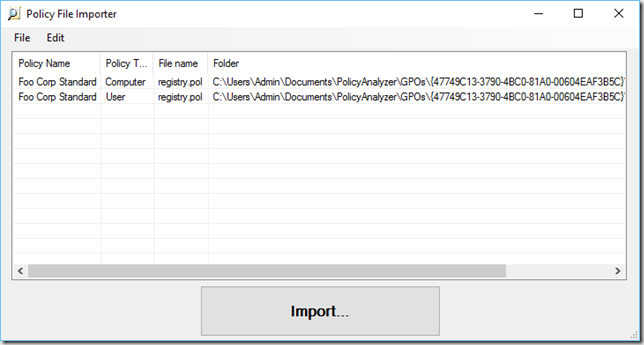
Select Import, and provide a name.
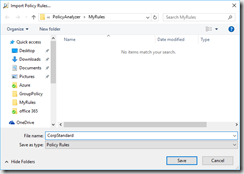
Repeat these steps for every GPO you want to compare.
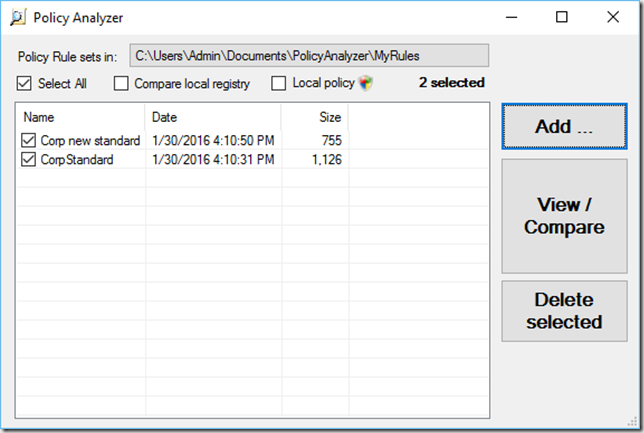
Next select View / Compare.
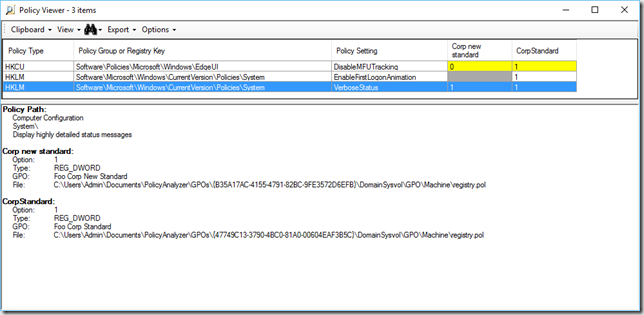
Select Export / Export all data to Excel
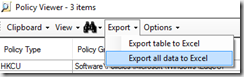
and there you, all information nicely prepared and ready for review.

The Policy Analyzer tool and documentation is available for download here
By the way, Microsoft also finally released the Security Baseline for Windows 10 “Security baseline for Windows 10 (v1511, “Threshold 2”) – FINAL” The Windows 10 TH2 Security Baseline.zip also contains a backup of the Windows 10 baselnie GPOs, so you can import these into Policy Analzyer as well and start comparing your current GPOs with those of the Security Baseline.
Enjoy!