When a physical device running Windows has problems, you have all sorts of possibilities to fix it, when virtual machine hosted within your on-premise virtualization infrastructure runs into issues, you still have all options to fix it. But the first time when a virtual machine hosted in Azure gets into trouble you might feel a little bit lost. But there’s hope. When I ran into an issue myself recently I found the following article “Troubleshoot Remote Desktop connections to a Windows-based Azure Virtual Machine”
The article mentions the Azure IaaS Remote Diagnostics Package. Here’s how it works.
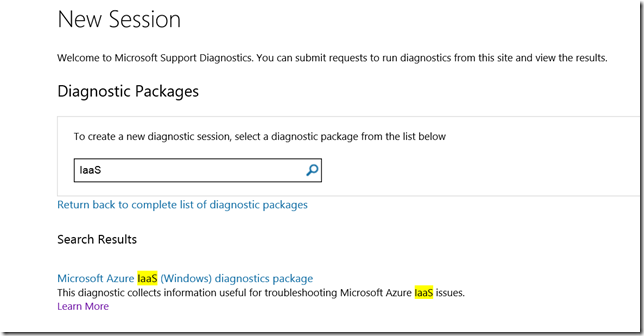
First go to https://home.diagnostics.support.microsoft.com/SelfHelp/ and then search for “IaaS”, you then should find the IaaS Azure Diagnostics Package.
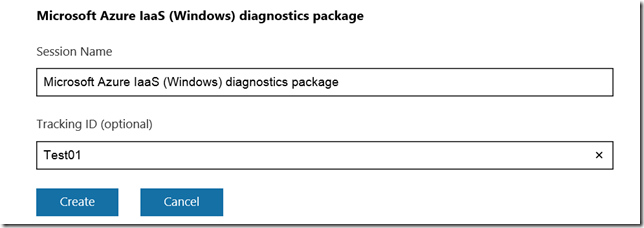
Next Enter a Tracking ID (optional), then select “Create”
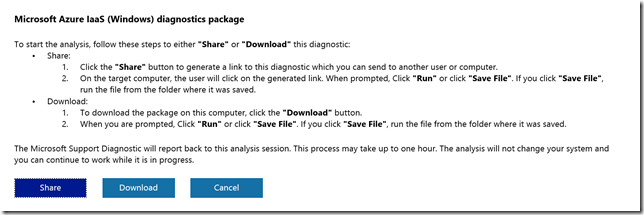
Next select “Download”
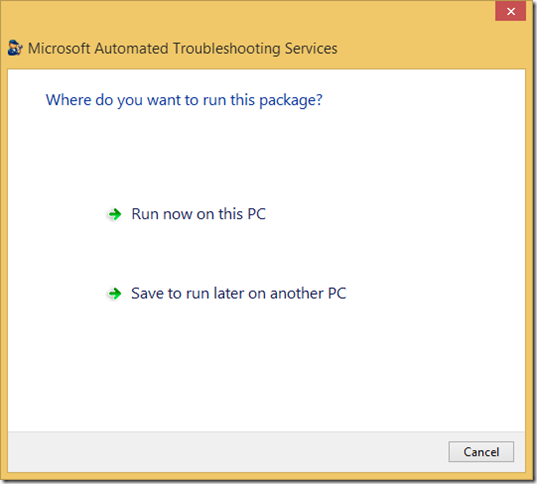
Save the file and then select “Run”

Select “Run now on this PC”
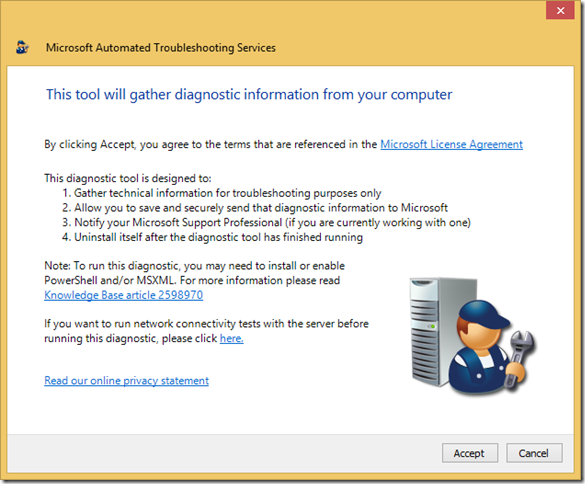
Select “Accept”
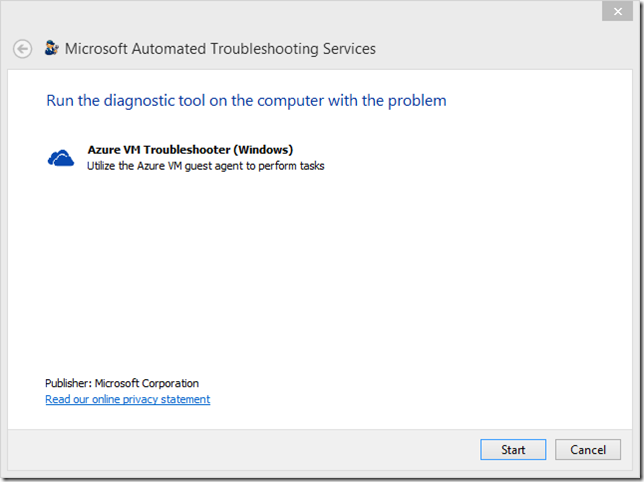
Select “Start” and confirm the UAC prompt
A folder c:\WindowsAzure is created on the local client.
Select “Next”
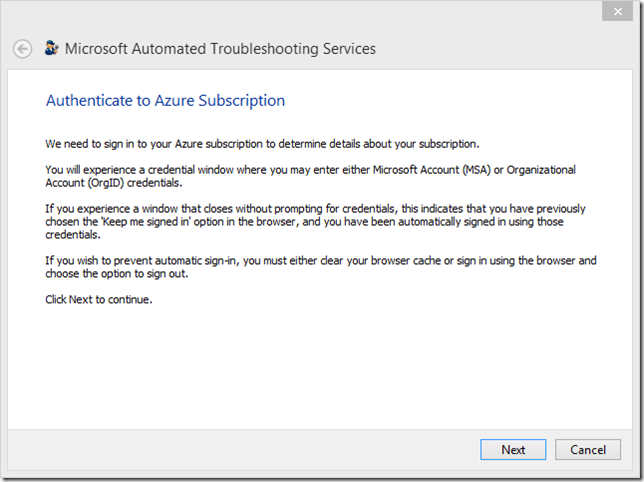
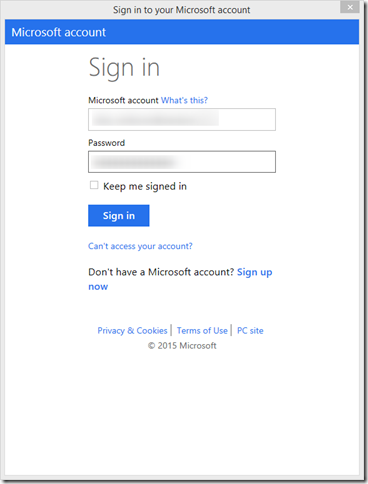
Next sign-in with your Azure Account.
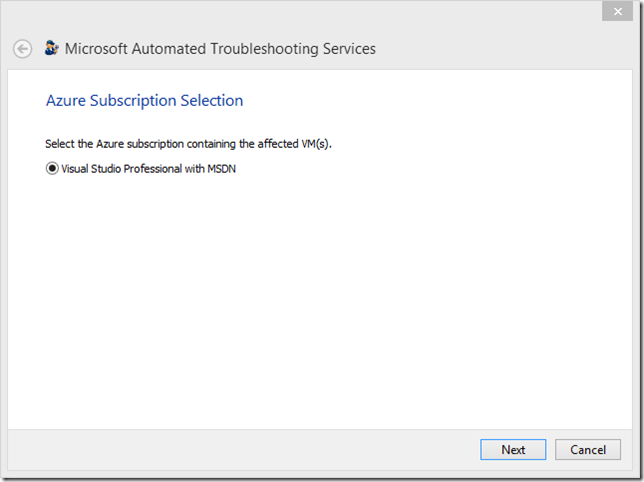
Select the Azure Subscription (in case you have multiple)
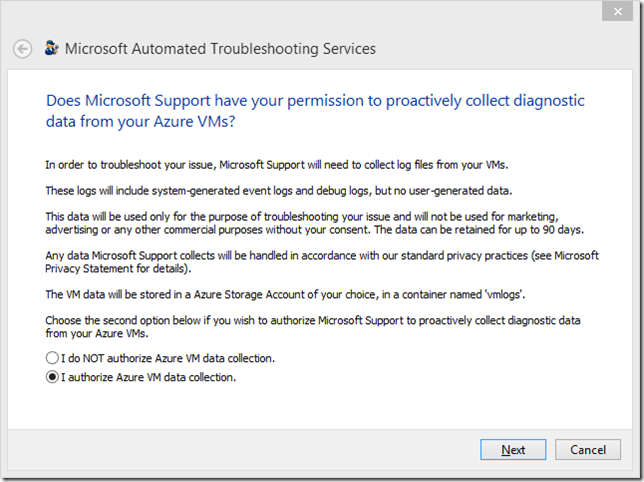
Next Accept to collect diagnostic data from Azure VMs.
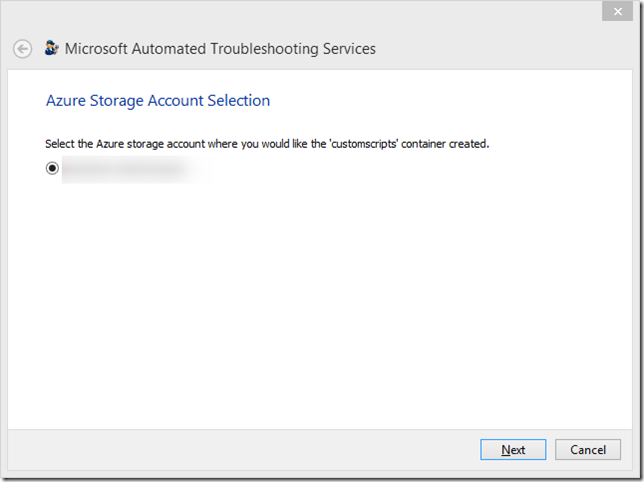
Select the Azure Storage Account (in case you have multiple)
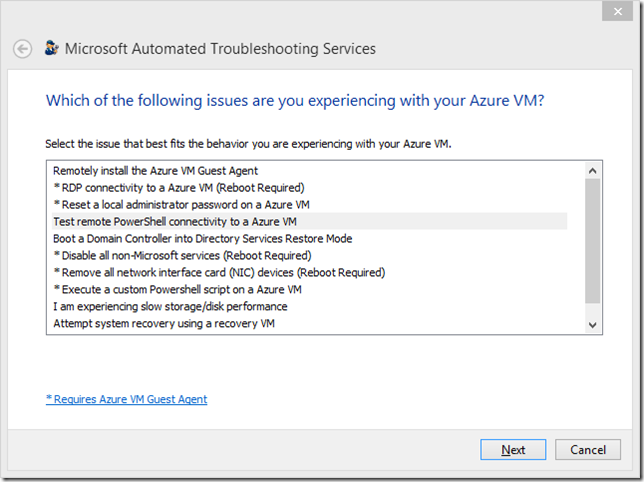
Next select the issue you are experiencing.
Next select the VM that experiences an issue.
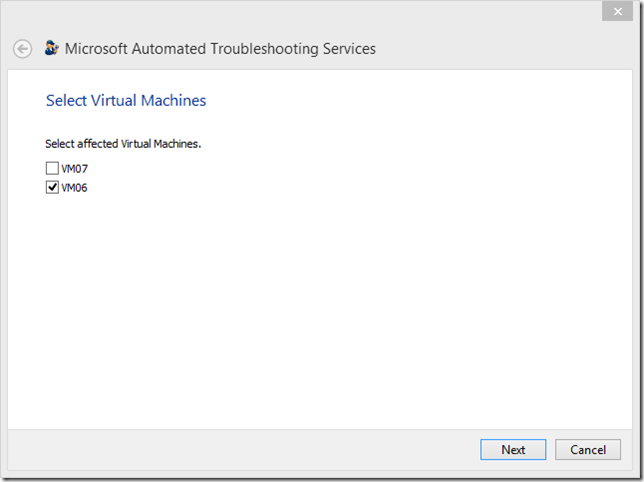
When the test / diagnosis is completed, you have the option to view the log files.
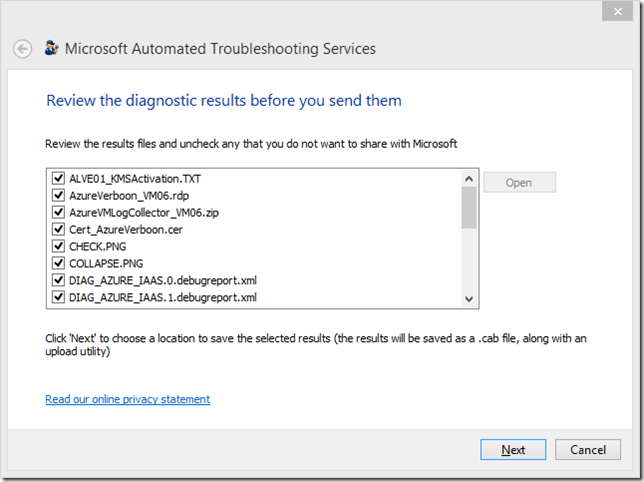
Optionally the log files can be saved locally.
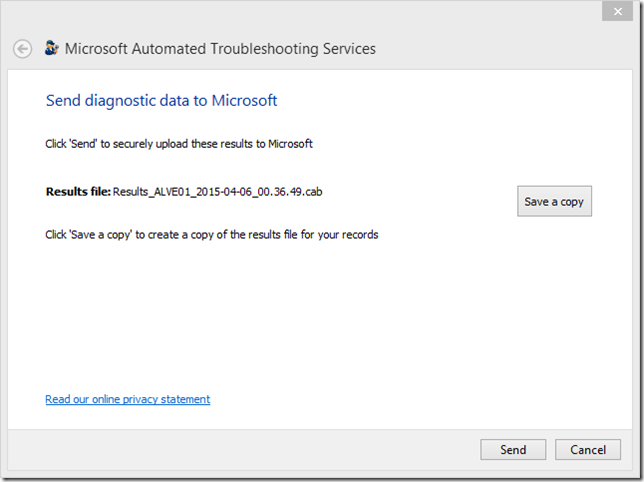
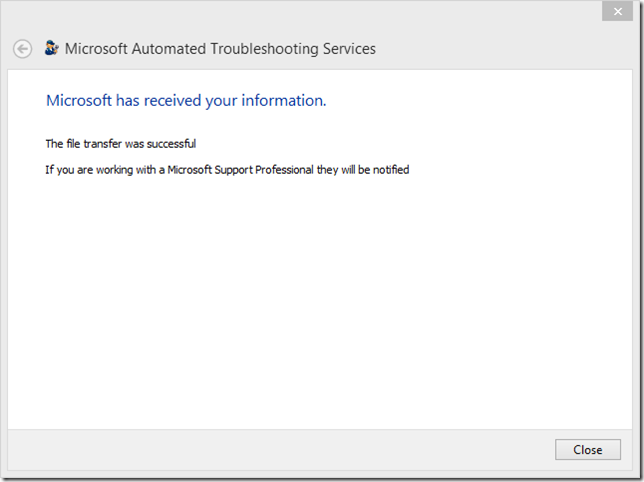
In addition to the saved CAB file, the tool also saves an additional file locally. In my case the file name was:
“C:\WindowsAzure\Logs\AzureVMLogCollector_VM06.zip”
The ZIP file contains various information such as Windows Event log data, Windows Setup, Networking and other information that might of use when troubleshooting a virtual machine.
Let’s hope your Azure virtual machines, just run smoothly, but in case, now you know there’s tools around for troubleshooting.