In my previous post Repurpose PCs with Windows ThinPC I used Andrew Morgan’s ThinKiosk to replace the default Windows Shell to limit the user’s access to the local machine. ThinKiosk can be configured via the command line, the Registry and via Group Policy. Now unless you like to write lengthy registry manipulation scripts, configuring the settings via Group Policy is definitely the way to go.
When clients are member of a domain we would of course use domain based group policy settings, but when not joined to a domain must use local Group Policy settings. In this blog post I describe in detail how to prepare and deploy a local GPO Pack. Note that the hereunder described process is not limited to the use of ThinKiosk but can be used for any local Group Policy configuration task for Windows ThinPC (Embedded 7), Windows 7 and Windows 8. (Note that for Windows 8 you’ll have to wait until SCM 3.0 comes out which is currently in beta).
Preparation
- Download Andrew Morgan’s ThinKiosk on a test client: http://andrewmorgan.ie/thinkiosk/download/
- Download Microsoft Security Compliance Manager on another test system: http://www.microsoft.com/en-us/download/details.aspx?id=16776
- If you already have the latest Microsoft Security Compliance Manager installed, you can find the LocalGPO Pack sources under
C:\Program Files (x86)\Microsoft Security Compliance Manager\LGPO. - On the test client, create the folder below to store the exported local GPO content:
C:\Data\lgpo
- Create the following local user accounts:
BlogreaderCitrixUserAdmin
Step 1 - Install ThinKiosk and the LocalGPO Tool
On a test client running Windows ThinPC:
- Launch
Kiosk-installer.msiand complete the installation. The tool is installed underC:\Program Files\ThinKiosk. - Launch
LocalGPO.msiand complete the installation. The tool is installed underC:\Program Files\LocalGPO.
Step 2 - Identify settings to configure
If you are not familiar with ThinKiosk settings yet, launch the Offline Configuration Tool first:
C:\Program Files\ThinKiosk\OfflineConfigTool.exe
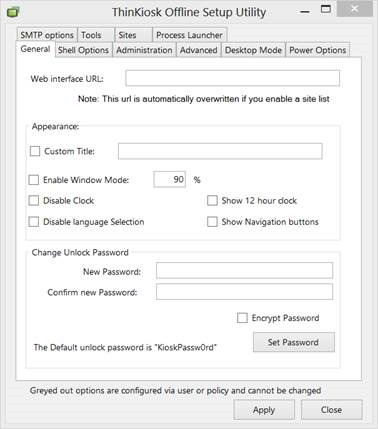
For this demonstration we will configure the following settings:
- Web Interface URL
- Custom Title
- Change the unlock password
- Replace the Windows Shell with ThinKiosk
To also demonstrate the capabilities of the LocalGPO tool and multiple local group policy objects, we are going to define settings at the Computer, Administrator/Non-Administrator, and User level.
The table below lists the ThinKiosk settings applied to the Computer and Users.
| Computer / User | Group Membership | Setting | Value |
|---|---|---|---|
| Computer | N/A | Change the unlock password | Enabled (Unlock) |
| Computer | N/A | Custom Title | Anything About IT |
| Blogreader | Users | Web Interface URL | Enabled (http://www.verboon.info) |
| Blogreader | Users | Replace the Windows Shell with ThinKiosk | Enabled (C:\Program Files\ThinKiosk\iexplore.exe) |
| CitrixUser | Users | Web Interface URL | Enabled (http://demo.citrixcloud.net) |
| CitrixUser | Users | Replace the Windows Shell with ThinKiosk | Enabled (C:\Program Files\ThinKiosk\iexplore.exe) |
| Admin | Administrators | Web Interface URL | Enabled (http://microsoft.com) |
| Admin | Administrators | Change the unlock password | Enabled (admin) |
Note: if you are installing ThinKiosk on an x64 system, ThinKiosk is installed in C:\Program Files (x86).
Step 3 - Load the ThinKiosk GPO settings template
Open the Local Group Policy Editor (gpedit.msc) and load the ThinKiosk group policy template stored under:
C:\Program Files\ThinKiosk\Resources\thinkiosk.adm
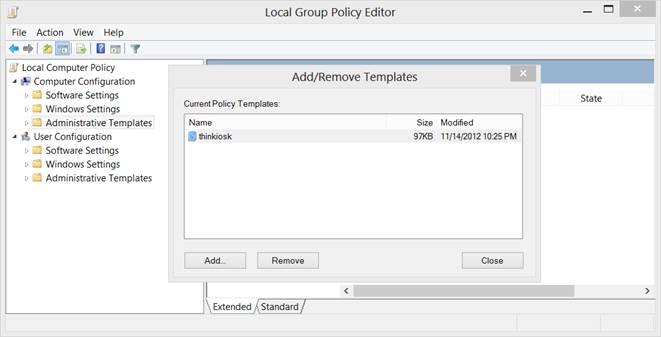
You should now see the ThinKiosk group policy settings under the Classic Administrative Templates node.
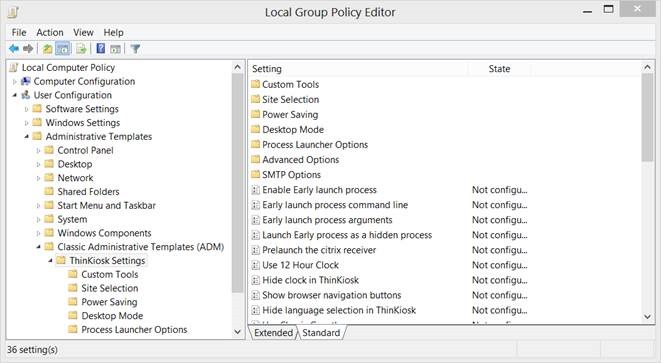
Step 4 - Configure and export the settings
Next, configure and export the settings listed in the ThinKiosk settings table.
Settings for Computer
Within the Local Group Policy Editor, under Computer Settings\Classic Administrative Templates (ADM)\ThinKiosk settings, set the Custom Title to Anything about IT and the Unlock Password to unlock.
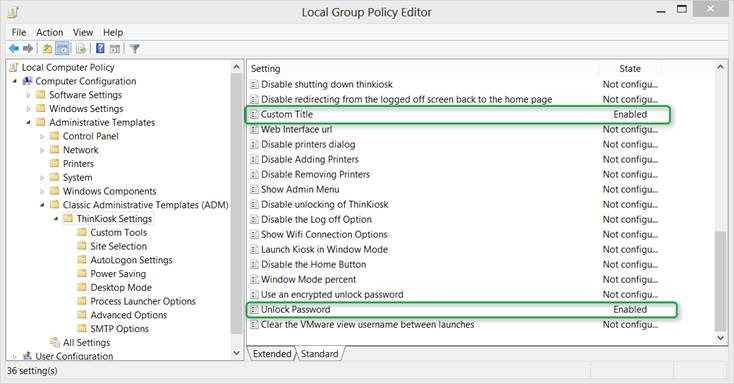
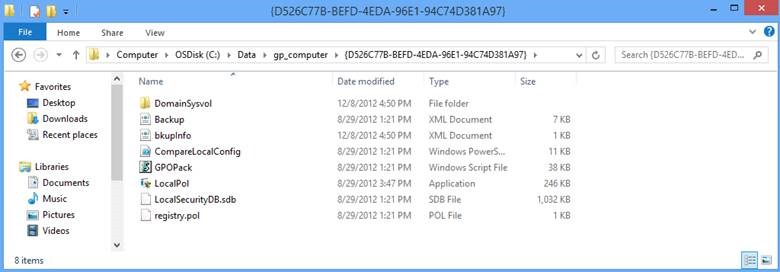
When these settings are applied, launch an elevated command prompt and export the GPO settings using:
cscript.exe localgpo.wsf /Path:c:\data\lgpo /Export /GPOPack:gp_computer
If all worked fine, you should now see something like this:
Settings for user Blogreader
To get a clean local GPO, disable any previously applied configuration under the Computer Configuration node.
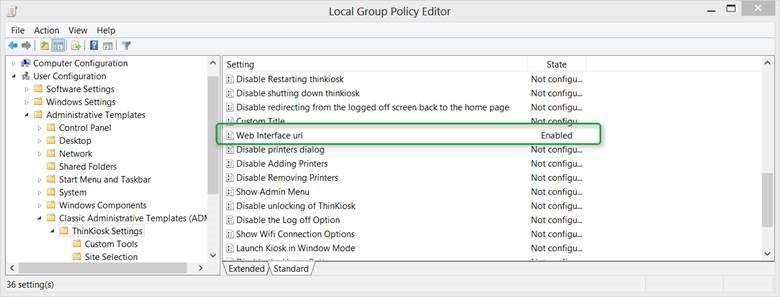
Next, configure the settings for user Blogreader. Within the Local Group Policy Editor under User Settings\Classic Administrative Templates (ADM)\ThinKiosk settings, set the Web Interface URL to http://www.verboon.info.
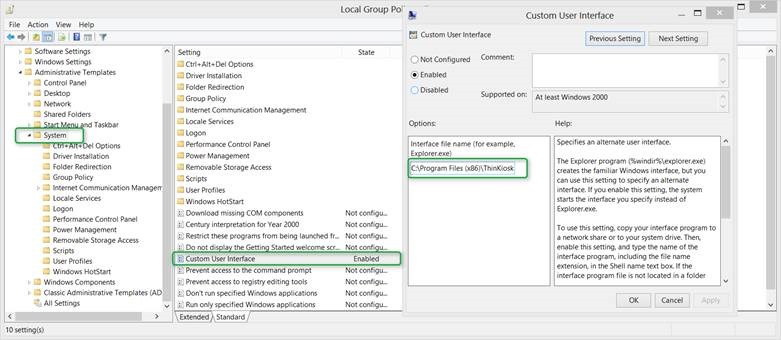
Under User Configuration\Administrative Templates\System, configure the Custom User Interface.
Then export the settings using:
cscript.exe localgpo.wsf /Pathc:\data\lgpo /Export /GPOPack:gp_blogreader
Note that the Path has changed to c:\data\gp_blogreader.
Settings for user CitrixUser
Repeat the same tasks as for user Blogreader, and change the Web Interface URL to http://demo.citrixcloud.net.
Then export the settings using:
cscript.exe localgpo.wsf /Pathc:\data\lgpo /Export /GPOPack:gp_citrixuser
Note that the Path has changed to c:\data\gp_citrixuser.
Settings for user Admin
Again, clean out any previously applied settings under User Configuration and then under User Settings\Classic Administrative Templates (ADM)\ThinKiosk settings set the Web Interface URL to http://www.microsoft.com and set the Unlock Password to admin.
Then export the settings using:
cscript.exe localgpo.wsf /Pathc:\data\lgpo /Export /GPOPack:gp_admin
Note that the Path has changed to c:\data\gp_admin.
Step 5 - Apply the settings
To apply the GPO Packs, you can either use the LocalGPO.wsf script (if the LocalGPO tool is installed on the target machine) or use the GPOPack.wsf script stored inside each GPO pack.
Assume we are now on a clean machine where we want to apply these GPO packs.
If we had configured one group policy pack with both Computer and User settings, we could launch GPOPack.wsf directly to import the settings. Since we want to apply settings to specific users, we must supply the /MLGPO command-line option to specify which user each pack should apply to.
The script below imports the previously prepared local GPO packs:
@echo off
cscript C:\DATA\lgpo\gp_computer\gpopack.wsf /Path:c:\data\lgpo\gp_computer
cscript C:\DATA\lgpo\gp_blogreader\gpopack.wsf /Path:c:\data\lgpo\gp_blogreader /MLGPO:Blogreader
cscript C:\DATA\lgpo\gp_admin\gpopack.wsf /Path:c:\data\lgpo\gp_admin /MLGPO:Admin
cscript C:\DATA\lgpo\gp_citrixuser\gpopack.wsf /Path:c:\data\lgpo\gp_citrixuser /MLGPO:CitrixUser
pause
If you want to suppress console output, add the /Silent option. If you want to apply settings to all administrative users, use /MLGPO:Administrators. If you only want to apply settings to non-administrators, use /MLGPO:Non-Administrators.
Step 6 - Verify it works
Log on to ThinPC with users Blogreader, CitrixUser, and Admin and verify that the settings apply correctly.
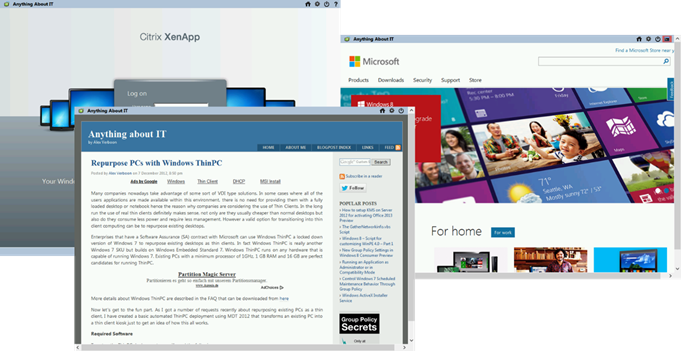
This post is based on the Windows ThinPC + ThinKiosk use case, but the same process can be used on Windows 7 and Windows 8.
As long as devices are domain-joined, there is usually little need to use local group policy settings. However, think ahead to scenarios like Windows RT devices, which by design cannot join a domain and therefore cannot receive domain-based GPOs.
If you manage Windows RT devices with SCCM 2012 SP1, you can deploy local GPO packs to these devices. Enable the Group Policy service as explained by MVP Alan Burchill in How to enable and configure Group Policy Setting on Windows RT, then deploy and apply a prepared GPO pack through SCCM.