Today when I was using the netsh command to configure some firewall settings, I noticed that it also has options for WLAN. (Yes you never stop learning). When opening a command prompt and executing NETSH Wlan Help you get the following options.
add - Adds a configuration entry to a table. connect - Connects to a wireless network. delete - Deletes a configuration entry from a table. disconnect - Disconnects from a wireless network. dump - Displays a configuration script. export - Saves WLAN profiles to XML files. help - Displays a list of commands. refresh - Refresh hosted network settings. reportissues - Generate WLAN smart trace report. set - Sets configuration information. show - Displays information. start - Start hosted network. stop - Stop hosted network.
To see my current Wireless configuration I open a command prompt and run NETSH Wlan Show Profile
Profiles on interface Wireless Network Connection:
Group policy profiles (read only)
<None>
User profiles
All User Profile : ORANJE2
I currently have only one Wireless profile configured called ORANJE2
Now let’s add a new Wireless Configuration, the first time I am going to do this manually so open the Wireless Connection window and select a Wireless access point. (there are a lot of them in our neighborhood and unfortunately being the unofficial first line support I know they keys of some of them)
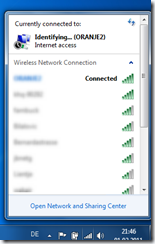
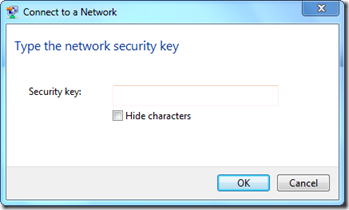
once connected I run the NETSH Wlan Show Profiles again
Profiles on interface Wireless Network Connection:
Group policy profiles (read only)
<None>
User profiles
All User Profile     : wakair
All User Profile     : ORANJE2
To save the Wireless Profile settings open a command prompt and run NETSH Wlan Export Profile
Interface profile “wakair” is saved in file “.\Wireless Network Connection-wakair.xml” successfully.
Now that I have the Wireless Profile saved in an XML file I can copy it and run the below command on any other client to automatically configure the Wireless settings.
netsh wlan add profile filename=Wireless Network Connection-wakair.xml
And finally to delete a Wireless Profile simply run
netsh wlan delete profile