Federated Search is one of the new features introduced with Windows 7. A few weeks ago I wrote another post about the Windows 7 Search Provider and demonstrated how to use a search connector that allows searching web content from within the Windows Explorer. Today I want to demonstrate how to extend Windows Search to find content on a remote network location.
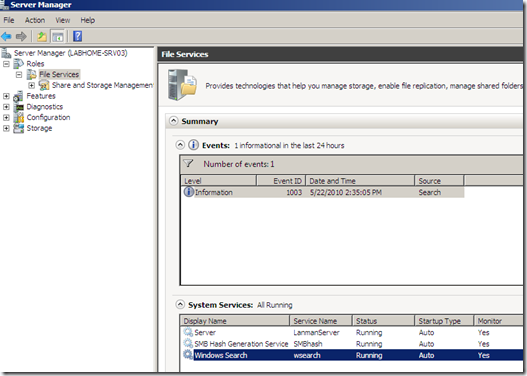
To allow users searching content that is stored on a remote File Server, Windows Search must be enabled. On Windows Server 2008 and 2008 R2 Windows Search can be configured through the File Services Role.
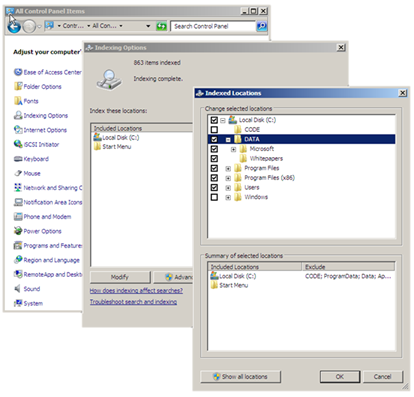
Now let’s make sure our Shared folder is included within the Search Index. The Search Index can be configured through the Control Panel Indexing Options. Select Modify to in/exclude content.
On the server side we’re done now, so let’s move over to the Windows 7 client. Open the Windows Explorer and navigate to the Libraries.
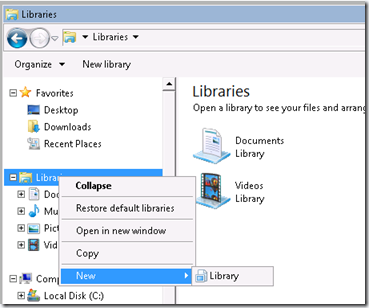
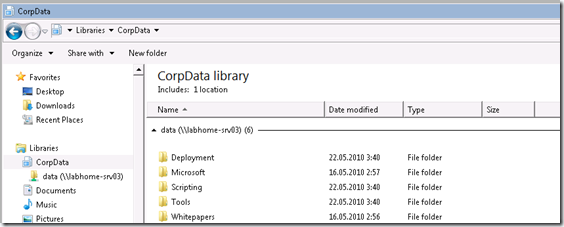
Create a new Library called “CorpData”.
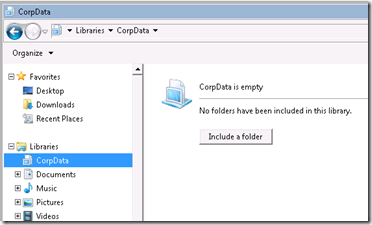
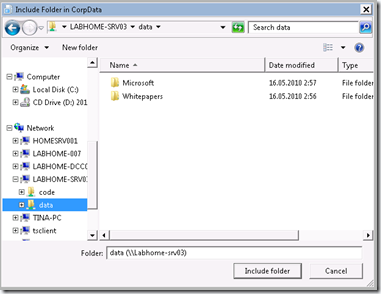
Select “Include a Folder”, then navigate to the Remote Server Share
Now let’s start a search for anything about “VDI”.
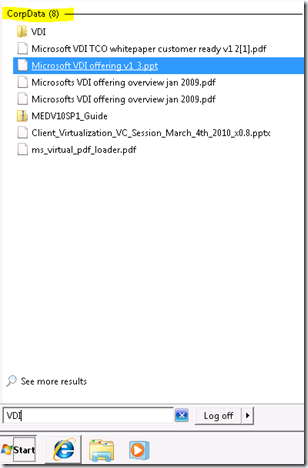
You see, it’s that easy. In an upcoming post I will focus on the manageability of Windows Search in an Enterprise environment.